How to add squeeze times in CPS Air
In order to squeeze an extra tee time in on a busy day, the 3.100 release of CPS Air contains the Squeeze Time option to the Starter Hut module.
Here's an example of where and when it may be used: At Birdsfoot course it is 80 degrees and beautiful on a Tuesday morning. A group of golfers drives in from Ohio to play and when they get to the golf course, there are no available tee times. The "squeeze" feature would allow you to add a tee time to your tee sheet. Say you have 10 am, 10:10 am, 10:20 am, etc tee times. Squeeze would allow you to quickly create a 10:15 am tee time and you would be able to get that additional group out on the golf course. Another example of using a squeeze time would be for VIP guests. Dr. Fauci pulls up to a golf course and doesn't have a tee time. No one is going to turn Dr. Fauci away so you could squeeze time in to accommodate the VIP request.
To see a video on this, click here >>
To use the Squeeze Time option in CPS Air
Note: You must be set up in the User Rules before you can use the Squeeze Time option.
Shout out to Chris Osentoski
-
Sign onto the iPad running CPS Air with your PIN.
-
Go to StarterHut.
-
Select the time you would like to squeeze a tee time into the tee sheet.
-
Select the three dots [...] from the bottom left-hand corner of the screen. A pop-up menu displays.
-
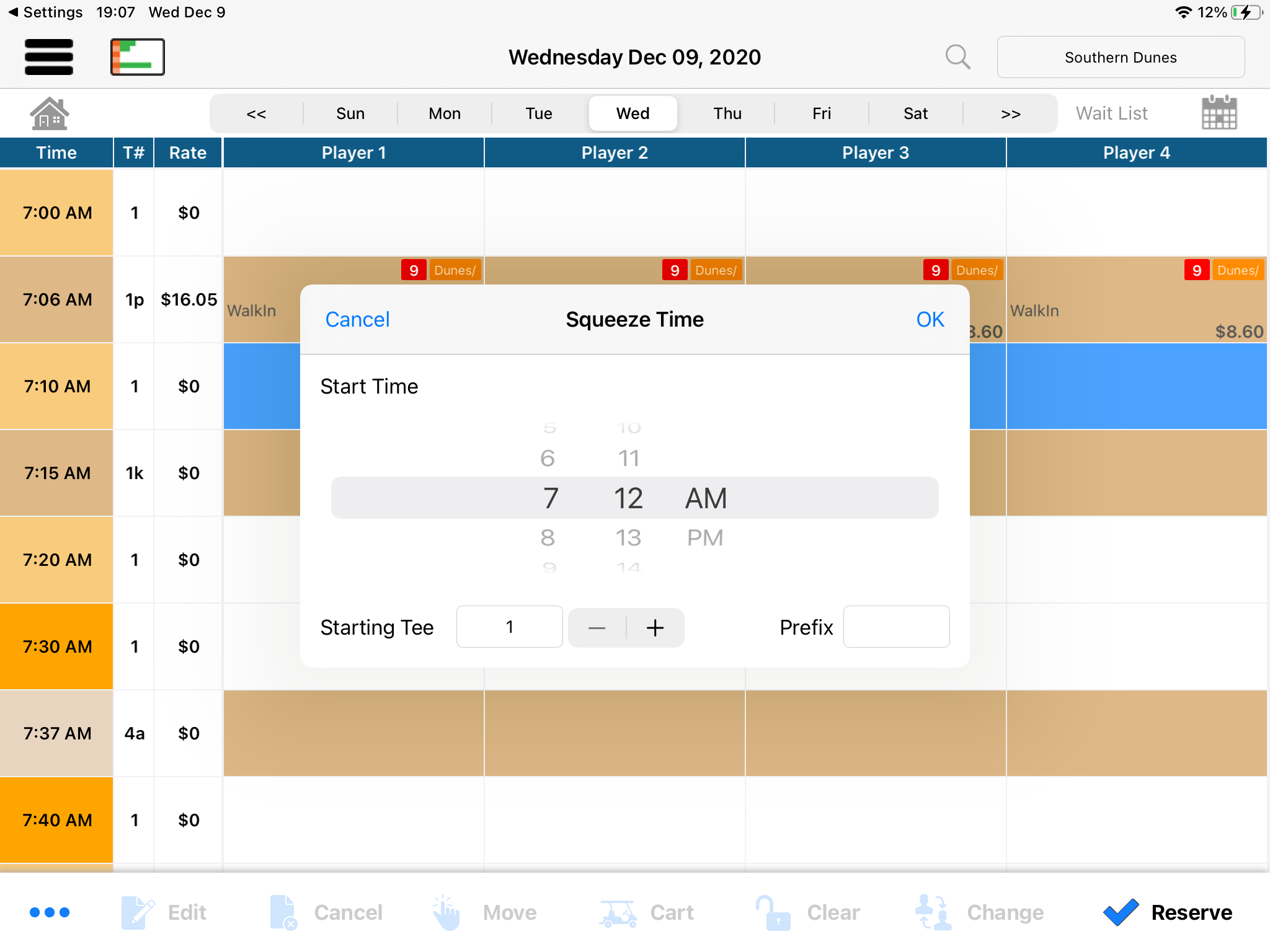
Click Squeeze Time from the pop-up. The Squeeze Time screen displays.
-
(Optional) If you have selected a time slot the time displays in the middle of the screen, and the starting tee displays at the bottom in the Starting Tee field; add a prefix, such as the letter “a” in the Prefix field to the right to help differentiate between the groups in that time slot.
Note: You can also select a new start time in the middle of the screen if need be.
-
Add the golfer’s names and select Reserve.